


How to choose additional storage for a full hard drive
Computer hard drives fill up surprisingly quickly nowadays. We explain how to choose additional storage.
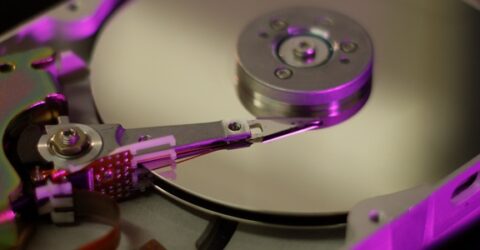
One of the drawbacks of living in a digital world is the sheer volume of content we accumulate.
A single smartphone photograph can be several times bigger than a 1990s software package, while video files quickly run to gigabytes.
Some apps require several GB of space simply to be installed, before any content is generated or downloaded.
Even downloading a PDF nowadays might swallow significant quantities of storage space.
No wonder computer hard drives often fill up quicker than their specifications in electronics stores might suggest.
That 256GB hard drive won’t last long when you consider Windows 11 requires 64GB of available space to accommodate everything from system restore points to future updates.
There are ways to compress and maximise hard drive space, as we explained a few weeks ago.
However, you might eventually be forced to choose additional storage to transfer lesser-used content onto, or to run in tandem with your existing hard drive.
But what should you pick, and how does it work?
A right state
Traditionally, hard disc drives were either internal or external, both featuring the same spinning discs and fragile read/write heads.
Nowadays, hard drive storage can also be solid state, which means there are no moving parts and no risk of magnetic objects corrupting saved data.
We’d always recommend solid state storage over a conventional hard drive for its greater portability, smaller size and improved resilience.
Solid state storage (also marketed as flash drives, memory sticks or USB drives) takes the form of plug-in sticks.
These may either be the traditional rectangular USB-A connections or the round-edged and smaller USB-C variety.
Check which ports your computer or laptop has when you choose additional storage. You can buy USB adapters, but they’re clunky and occasionally cause connection issues.
If you’re transferring files onto an external drive, it’s best to relegate older or less commonly used files to the secondary device, keeping core material on your computer’s HDD.
Technically proficient readers could even install a new (secondary) hard drive into a desktop PC, though removing the case immediately invalidates any remaining warranty.
Cloud formations
Another option is to bypass physical storage altogether and get your head in the cloud.
This sounds complex, but it’s actually very simple. If you’ve ever used Dropbox or Google Drive, this is the cloud in action.
Documents and files are stored remotely, accessed over the internet on any logged-in device without being physically present.
It’s possible to configure your device to automatically back content up to the cloud, as with Microsoft OneDrive, so file transfers are handled automatically.
Cloud storage is purchased in bundles, and there’s usually scope to increase available capacity as your needs evolve, making this a cost-effective way of renting extra space.
Size matters
Also consider how large you want the replacement storage to be.
A good rule of thumb is to double the capacity of your current (full) hard drive, so a 256GB hard drive would be augmented by a 512GB auxiliary.
Because external storage doesn’t have to host operating systems, program files or applications, almost every gigabyte of its capacity is available to accommodate file storage.
Larger capacities cost a little more, but file sizes are only likely to increase as smartphone cameras capture more pixels and ultra-high-definition media files become normal.
When it’s time to choose additional storage, futureproof yourself against running into this problem a second time…