


What to do if you run out of device storage
Running out of device storage is a real risk, but there are plenty of practical steps which will resolve it
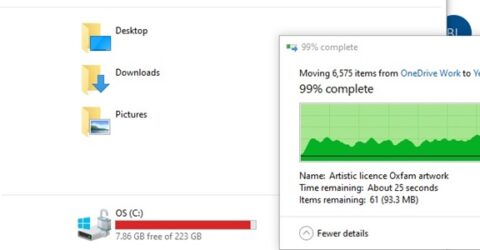
Device storage is something we rarely think about when purchasing a new electronic device, even though it’s often among the first statistics quoted in adverts and product descriptions.
Sadly, insufficient storage can become a headache on any device, regardless of how many gigabytes were originally provided.
Despite those seductive manufacturer stats, a fair percentage of any available storage will be set aside to host operating systems and essential software.
Once internal storage fills up, it affects response times and slows down processors. It becomes harder to find specific files, and you may be unable to save new documents.
Fortunately, freeing up additional storage space can be achieved quickly and painlessly.
These are some of the best options if a computer, tablet or smartphone is reporting a sudden lack of available space…
1. Remove superfluous software.
Around a quarter of apps are installed and used only once, before being left on devices even though they’ll never be accessed again.
Since the average smartphone has around 60 apps on it, that’s a great deal of hard drive space being tied up by unwanted or unneeded programs.
While some software will have been pre-installed by the manufacturer and can’t be deleted (known as bloatware), only retain programs or apps which are still periodically used.
2. Delete duplicated files.
It’s common to download the same PDF more than once or take a burst of camera images even though you only need one of them.
Delete duplicates and low-quality photos or videos. Does that shaky and distorted concert footage from 2023 really add anything to your life?
If you’re unsure where to start, order media files by size and trim the largest ones first to achieve the quickest results.
3. Backup data in the cloud.
Cloud storage isn’t a mysterious process, and it can be done automatically by packages like Microsoft OneDrive or Apple iCloud while your computer, phone or tablet is online.
Providing your settings won’t mirror device storage in the cloud, deleting files locally once they’ve been backed up should ensure a version still exists in cloud storage.
You’ll need an internet connection to access them, but individual files or folders can always be downloaded again in future – and there’s no danger of accidental erasure in the cloud.
4, Defragment the hard drive.
We’re getting into more technical territory here, but desktop computers with hard disc drives are particularly poor at storing data in neat parcels as you might expect.
Instead, data ends up scattered across the storage in fragments. Defragging a hard drive brings those disconnected fragments back together, saving space and speeding up the device.
The Optimise Drives function occurs automatically in Windows 10 or 11, but it may need to be manually activated if your device uses an older version of Windows, or runs on Linux.
5. Prevention is better than cure.
The best way to avoid device storage issues is to stop them from happening in the first place. This requires ongoing vigilance, from emptying Trash bins to erasing old file downloads.
Even if your device has hundreds of gigabytes of storage free when it’s new, it’s amazing how quickly video files, streaming media downloads and software packages consume space.
Do you really need a conversion app or software emulator? Could web browser access be an alternative? How many GB of storage does new software need to be installed and run?