


How to manage your email folders in Outlook
Organising email folders in Outlook can make messaging and communications far simpler
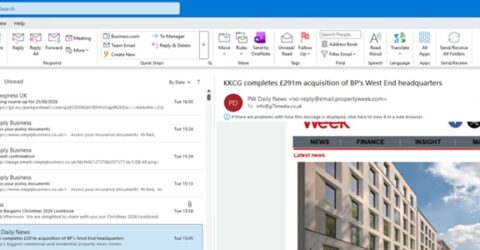
If you had to guess when the world’s first email was sent, what era would you picture?
Younger readers might pick the Noughties, though email was part of the World Wide Web from its inception.
This might suggest the two things happened simultaneously, yet email was around long before Sir Tim Berners-Lee democratised internet access.
Email even predates Prestel, the 1980s attempt at bringing interactive computer services into our homes.
In fact, the world’s first email was sent 55 years ago. And perhaps surprisingly, it wasn’t a spam message.
A bright Outlook
Today, there are numerous email providers, and various providers of software packages.
Many email services, such as Gmail, are commonly accessed through a conventional web browser, though this has various limitations.
Yet for corporate activities, one commercial email platform stands head and shoulders above the others, with 400 million active users worldwide.
Microsoft Outlook remains peerless as a method of organising and managing messages.
The Outlook app is available on both Android and iOS, but its most powerful incarnation is the package bundled into Microsoft 365, formerly known as Office 365 (and Office before that).
Available in a variety of consumer and business packages, every version of 365 has Outlook built in.
Its ribbon bar (introduced in Office 2007 to replace the traditional drop-down menu interface) has become ubiquitous, yet it remains confusing and often unintuitive.
How many times have you clicked To Manager, IMAP folders or Send to OneNote?
Neatly folded
Many of the options on the ribbon menu will never be clicked, but the Folder menu deserves consideration.
Outlook’s true versatility comes when you start segregating messages into sub-folders to simplify and organise them.
Contrary to popular belief, moving a message to separate email folders in Outlook doesn’t change its actual location – it simply applies a label which ensures it displays in the requisite folder.
As a result, searching an Inbox will also search all sub-folders, though it won’t check other primary email folders in Outlook like Sent or Archive.
Outlook mirrors other email platforms in the primary folders it offers – inbox, drafts, sent, spam and trash (the latter more commonly referred to as Deleted Items).
However, Outlook’s greatest attribute is its sub-folders, which can be organised in any way you wish and renamed at any time.
You could differentiate work and personal emails, have a separate sub-folder for each client, or organise household policies with a folder for each provider/contract/service.
To reduce space in the inbox (which quickly becomes overcrowded), you can create archive email folders in Outlook, though these are not saved onto your device’s hard drive as they once were.
Instead, all emails are remotely hosted, which has been the case since IMAP replaced the old Post Office Protocol (delivered once to a single location) as the default email delivery method.
IMAP means you can view messages – and archived sub-folders – on multiple devices. If an existing computer fails, you simply import them onto its replacement once it’s online.
Folder tips
Firstly, don’t over-complicate the process of creating sub-folders.
Differentiate between short-term actions and long-term reference folders, as well as generic marketing content, and never create sub-folders within other sub-folders.
For employees, a few obvious suggestions might be sub-folders titled Circulars, Urgent, Events and Deal With Later, or a dedicated folder for each internal department (HR, IT, etc.)
The Date display is better than the Conversations view in terms of seeing who sent what and when; concertinaing messages into a single thread naturally complicates this process.
If you’re using a works account but also receiving personal messages, create a Personal folder, and apply a rule that all emails from personal contacts are redirected.
Rules are a great Outlook tool, automatically directing incoming messages into relevant sub-folders and quickly applying a new rule to existing inbox messages.
If you want to pull together messages from multiple email folders in Outlook, tap the New Search Folder button under the Folder header and enter your criteria.
Finally, flagging messages using the Follow Up button on the Home header helps to quickly locate messages in particular sub-folders.